ZEPAY / FAQ / Your Account, Password and Email Verification
Your Account, Password and Email Verification
How to register, protect your sign-in, change account details and recover access using your registered email.
Updated November 1, 2026
Quick answer
Register with email and a password. Email delivery for recovery depends on the account setup.
Check your account for current availability before sending any funds.
What registration asks for
Use an email address you control and a password. Registration does not request your name, telephone number, country or identity documents. Email-format checks catch invalid formatting; only a delivered confirmation code proves access to the mailbox.
Choose a password you use nowhere else
Passwords must contain 8–128 characters. A longer, memorable passphrase is a good choice. Avoid your email address, repeated characters, predictable sequences and common passwords; the server rejects weak choices.
Use a password manager if you have one. Never send your password or a sign-in code to support.
Change your password
Open Settings in your account and choose Change password. Enter your current password, your new password and the new password again. The server checks the current password and requires both new entries to match before saving the change. Other signed-in sessions are ended after a successful password change.
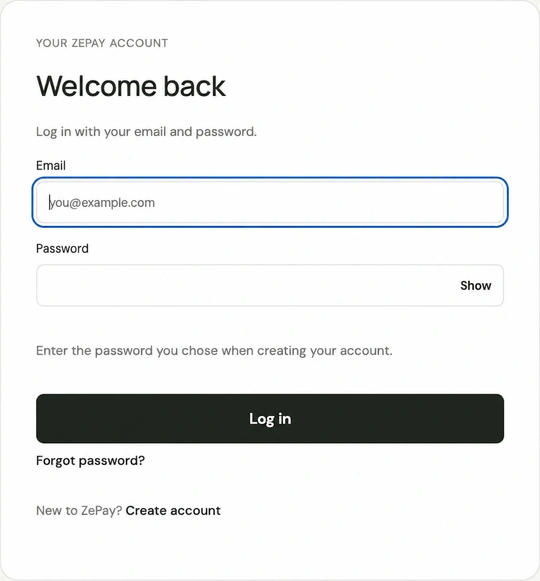
Use the new password the next time you sign in. If you cannot remember the current one, use Forgot password on the login form.
Confirm your email and add a sign-in code
Email confirmation and an extra email code at sign-in are not connected in this version. Configuring password recovery does not enable these separate features.
Protect your mailbox with its own strong password and authentication settings. Email codes are not a substitute for protecting the mailbox itself.
Recover access with a code
Choose Forgot password on the sign-in form and enter your registered email. If recovery is available for that address, a one-time eight-digit code is prepared. Delivery depends on the account environment. The recovery form shows the options currently available.
Enter the code, choose a new password and confirm it. The code expires ten minutes after the request and permits at most five incorrect attempts. Resetting ends all existing sessions; sign in again with the new password. The old password is never recovered or sent by email.
Real email recovery requires access to the registered mailbox. If you lose that access, support cannot bypass the check. Keep your mailbox recovery options up to date.
Change your email address
Email changes are not connected in the current version. Entering a different address does not update your account.
A verified email-change process must be implemented before this feature can be enabled. Do not assume password recovery permits changing the registered address.
Card issuance and privacy
The supplied product terms include No-KYC issuance. Final provider conditions must be confirmed before real cards are sold. Asking for fewer details does not mean complete anonymity: the server processes account and technical connection data.
Guides · About ZePay · Contact